2026-08-28
TargetScan — you pick, we scan
New feature
TargetScan
You pick, we scan.
Re-scan the games you know are wrong — one, or two hundred.
Open TargetScan
Why a game goes wrong in the first place
Your library is re-checked when something changes, or when a game goes a week stale. That is the right rule for keeping thousands of titles current, and it is also why a game can sit quietly wrong for days. Four ways it happens:
🎯 The achievement total does not match the individual unlocks.
🎯 0G Xbox 360 achievements never got picked up.
🎯 Play time froze at the moment you stopped unlocking.
🎯 The score never recomputed.
All four are fixed by re-checking that one game: the achievements are refetched, your earned count and gamerscore are rebuilt from those unlock rows, your first and last unlock dates and the span between them are rewritten, and a fresh play-time reading is taken from Xbox.
We have seen this first hand
New members signing up to XCT have had achievements in DayZ, Surviving Mars, Blind Postman and PUBG: BATTLEGROUNDS come unstuck on their first proper scan — achievements Xbox had been sitting on quietly appearing as unlocked. At the time it caused a lot of confusion, and more than one accusation of a hacked gamertag, when all that had actually happened was that the achievements were finally being read properly. This is the same machinery, pointed where you want it.
One game
Open any game page and look at your progress panel: it now tells you when that game was last scanned — “yesterday”, “3 days ago”, or “never fully scanned” — with a Request scanner update link beside it. Press it and the scan usually starts within seconds, because pressing it kicks the scanner rather than waiting for your next one. Requested games jump the queue.

The game page — in your progress panel, under the bars.
Whichever way you start it, the same panel opens and shows you what it is doing — and, at the end, what it actually found:
◎ TargetScan
Shadows of Doubt
✓Queued
✓Re-checking achievements62 found
✓Rebuilding gamerscore and totals
✓Re-reading play time and timestamps
scanning…
✓ Found 7 hours of play time and 3 achievements that had not been recorded.
Or two hundred
One at a time is fine when one game is wrong. What actually happens is that a run of them goes wrong together — a bad scan window, a gamertag switch, a batch of 360 titles whose achievements never landed. So turn on Select in the Games list, tick the games (or hit Select all matching filter), and press ◎ TargetScan. The whole selection is queued at once and the bar counts it down — “38 games left to scan…” — until it says complete.

Select mode in the Games list — tick, press once, watch it drain.
Find what needs it
The Games list has a new Last scanned column (Columns ▾ → Your status). It sorts, which is the point: bring the most out-of-date games in your library to the top, select them, and TargetScan the lot.
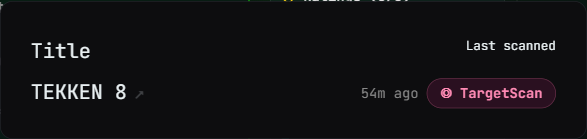
The Last scanned column — sortable, with its own button on every row.
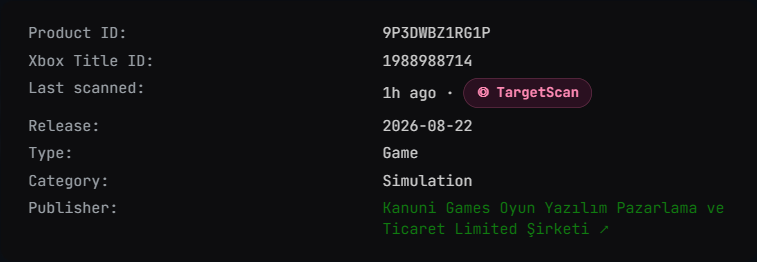
And in the game popup, under the title ids.
Or start from Settings
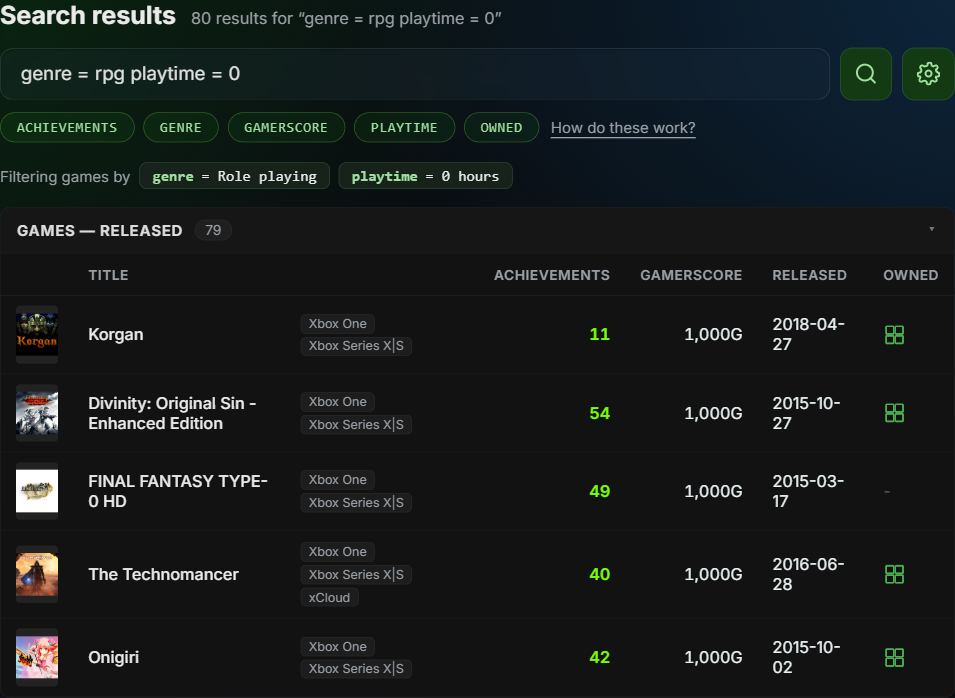
Every route above starts from a game you are already looking at. If you arrive with the other question — which of my games looks wrong? — there is now a TargetScan panel in Settings, under the force-update scans. Type any part of a name and it searches the games on your own profile, showing each one’s unlock count, gamerscore and when it was last fully scanned, so you can see which are stale before you spend anything. It tells you how many scans you have left today, too.
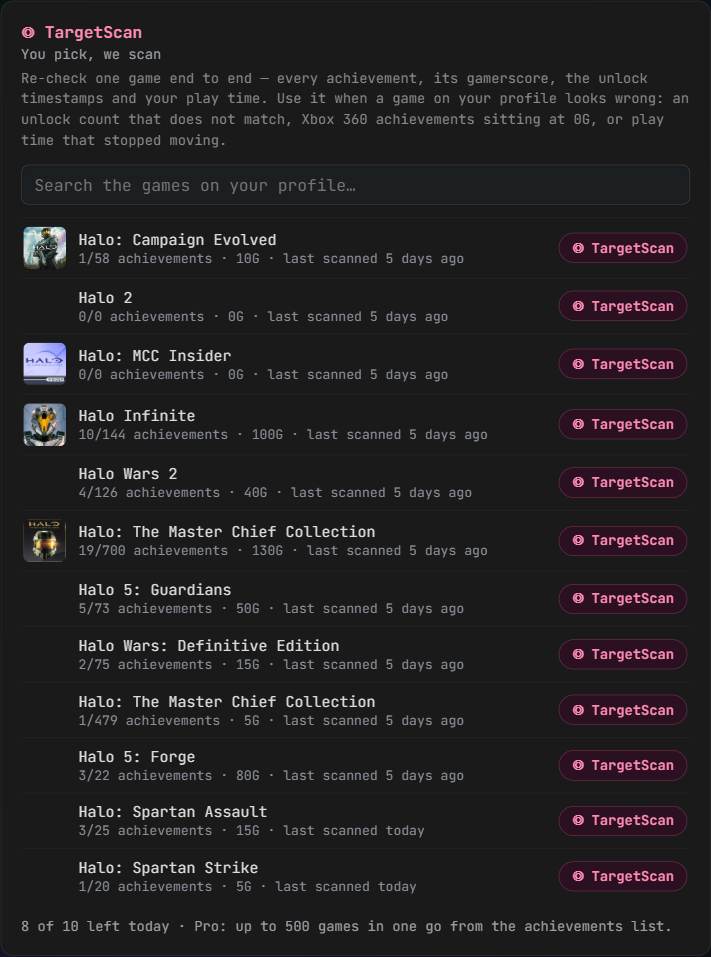
Settings → TargetScan: search your own games, scan the one that looks wrong.
The questions people always ask
Is this just play time, or everything? Everything for that game: the individual achievements, your earned count and gamerscore rebuilt from those unlock rows, your first and last unlock dates and the span between them, and a fresh play-time reading.
Does it wait for my next scan? No. Asking for it also starts the scanner, so it is normally seconds. Ask for ten games and all ten go in the same pass.
Can I just do all my completed games? On Pro, yes — that is what TargetScan is for. It is one queue drained in order, and the whole batch counts as a single TargetScan, not one per game.
How many do I get? Free accounts get 1 TargetScan a day, one game at a time. XCT Pro gets 10 a day, with any number of games in each — so sweeping two hundred completed games costs one of the ten. Both buttons draw on the same allowance, and the select bar shows what is left before you press.
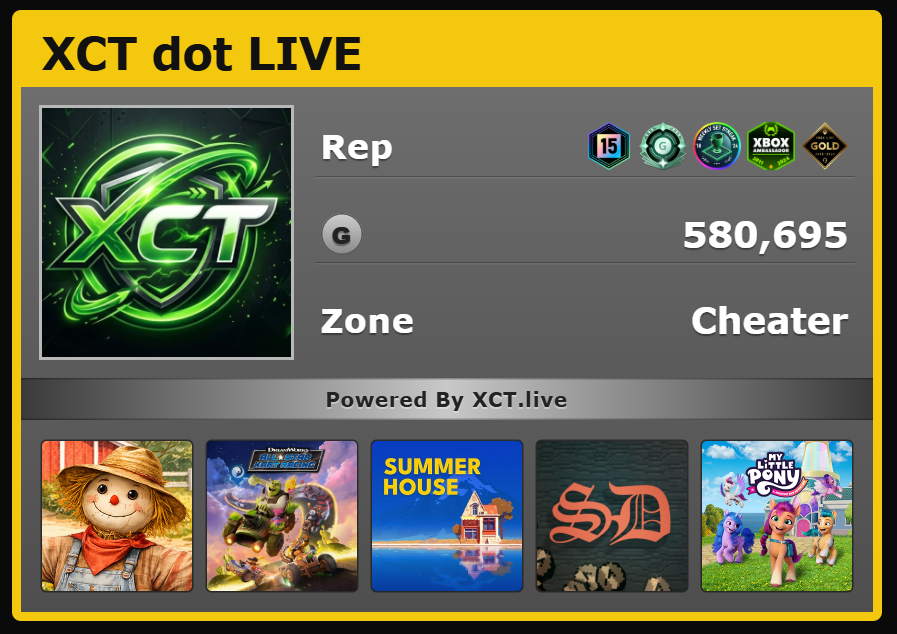 Sign in with your Xbox account and the Summary tab now leads with a retro Xbox 360 style gamercard: gamertag in the yellow stripe, your profile picture, a Rep row built from your rarest equipped badges (tenure, gamerscore tier, then up to three Initiative badges), total lifetime gamerscore, your picked Zone, and a strip of the five games you've played most recently. Pick your Zone from the dropdown below the card — Recreation, Pro, Family, Underground, or Cheater.